
Personal Organization
How to Organize Your Life Without Using Multiple Apps
Why staying organized across several apps feels like extra work, what a simpler system looks like, and how a chat-first organizer files reminders, tasks, notes and expenses from one place.
By Livy AI · · 8 min read
You remember something you need to do tomorrow, so you open your reminder app. A few minutes later you have an idea worth keeping, so you switch to your notes. You buy something and want to track the expense, so you open a spreadsheet. Later you think of something else, and because it is easier than deciding where it belongs, you send yourself a message.
Each of these apps may work perfectly well. But keeping everything organized across them can become a responsibility of its own. Sometimes organizing your life starts to feel like another task on your to-do list.
The problem is not necessarily having several apps. It is having to organize every piece of information by hand before you can save it. A simpler system can take much of that effort away, and this guide shows how.
Why Does Staying Organized Feel Like Extra Work?
Most people end up with a separate system for each kind of information: appointments in a calendar, quick reminders in a reminder app, projects in a task manager, ideas and lists in a notes app, and spending in a spreadsheet. Each one is useful on its own. Together, they ask you to remember where everything belongs.
You Have to Decide Where Everything Belongs
Even a simple thought can need several decisions. Is it a note? A task? Does it need a reminder? Should it go into an existing project? Often you only want to save it before it slips away, and answering four questions first makes it easy to postpone, or to skip.
Your Information Ends Up Scattered
When some things live in notes, some in reminders and some in messages to yourself, finding something later means guessing where you put it. You search three places for one address, and sometimes you do not find it at all.
Maintaining the System Becomes Another Responsibility
Folders need creating, lists need tidying, categories need maintaining, tasks need updating, and several apps need reviewing. Organization is valuable, and the effort should match what you get back. When the upkeep costs more than the benefit, the system tends to fall apart.
The Hidden Cost of Switching Between Organization Apps
Imagine you are planning a weekend trip. You might want to:
- Create a checklist of things to pack.
- Set a reminder to leave for the airport.
- Save a list of places to visit.
- Record what you spend.
Using several apps for that can be perfectly reasonable. But every switch means opening something new, finding the right place and getting back to what you were doing. None of the steps is hard. The cost is the small effort of moving a passing thought into the right system, repeated many times a week.
A Simpler Way to Organize Everyday Life
These ideas work with any tools, including a paper notebook.
Capture Information Before Organizing It
Recording a thought right away is usually more useful than spending time deciding how to categorize it. Choose one simple capture point, such as a notebook, a single notes page, a message to yourself or a personal organizer, and put everything there first.
Keep Reminders and Tasks Distinct
A task describes something you need to complete. A reminder helps you remember something at a specific time, or when you ask to be notified. "Prepare the slides" is a task. "Remind me to send the slides tomorrow at 9 AM" is a reminder. Mixing them up leads to alerts for things that do not need one, or to important deadlines that never notify you. For tasks, we also cover how to turn a messy to-do list into an actionable checklist.
If you want to go deeper on reminders, we wrote about how to stop forgetting things with simple reminders.
Keep Notes Findable
Ideas, lists and reference information are only useful if you can find them again. Put similar things together, such as one list for books and one for films, instead of scattering them across messages and apps. We go deeper in how to organize notes without complicated folders.
Review What You Saved Once a Week
Ten minutes a week is enough to tick off finished tasks, check upcoming reminders and glance at what you spent. This is where organizing belongs: in a short review, not in the middle of your day.
Capturing Is Not the Same as Organizing
Capturing means saving the thought. Organizing means deciding what it is, where it goes and when it matters. When you do both at the same moment, capturing gets slower and more things go uncaptured.
A good system separates the two. You capture quickly, in your own words. The sorting then happens afterwards, ideally without you doing it by hand.
A Chat-First Way to Organize Everything
This is the idea behind Livy AI, a chat-first personal organizer. You write a short message in everyday language, and Livy works out whether it is a reminder, a task, a note or an expense, and files it for you. The sentence is the capture. The organizing is done afterwards.
That does not mean you must give up the apps you like. Livy is not a calendar and does not sync with one. It simply makes it easy to capture the everyday things that would otherwise end up scattered.
How Livy Handles Reminders, Tasks, Notes and Expenses
Reminders
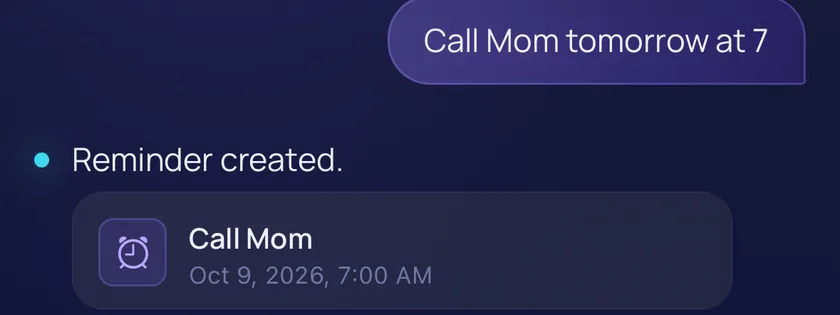
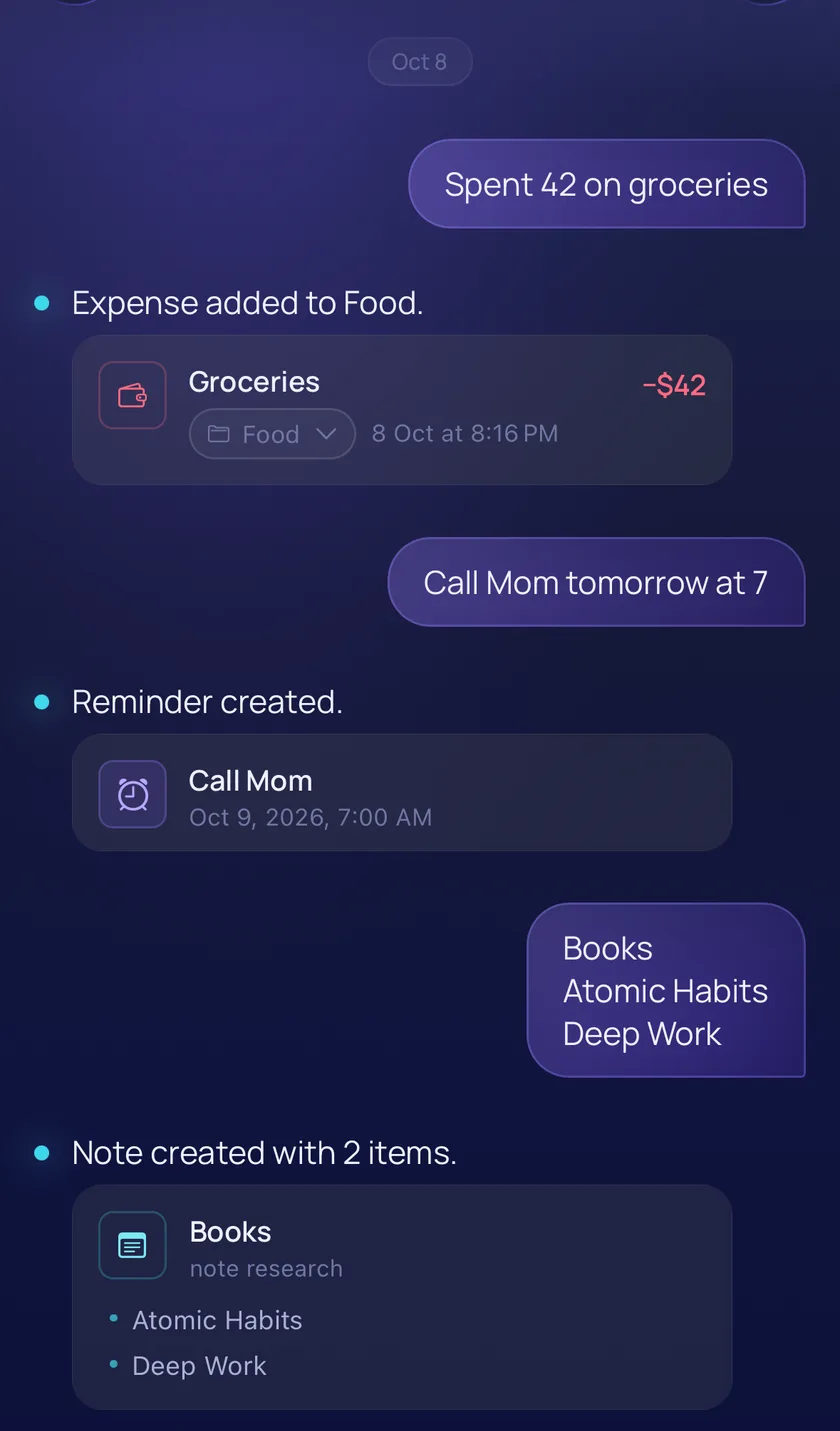
Ask to be reminded, or give a date and time for the action, and Livy saves a reminder. Write "Call Mom tomorrow at 7" and Livy replies "Reminder created." Birthdays and renewals work too.
Tasks
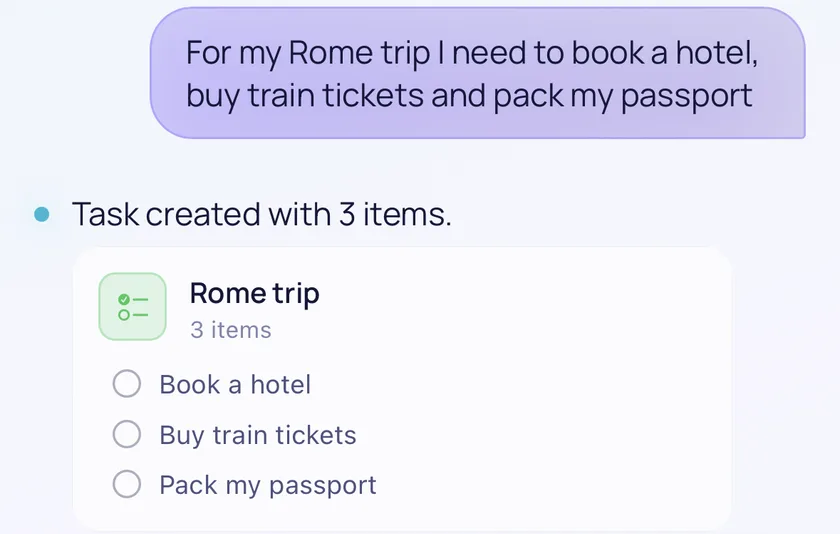
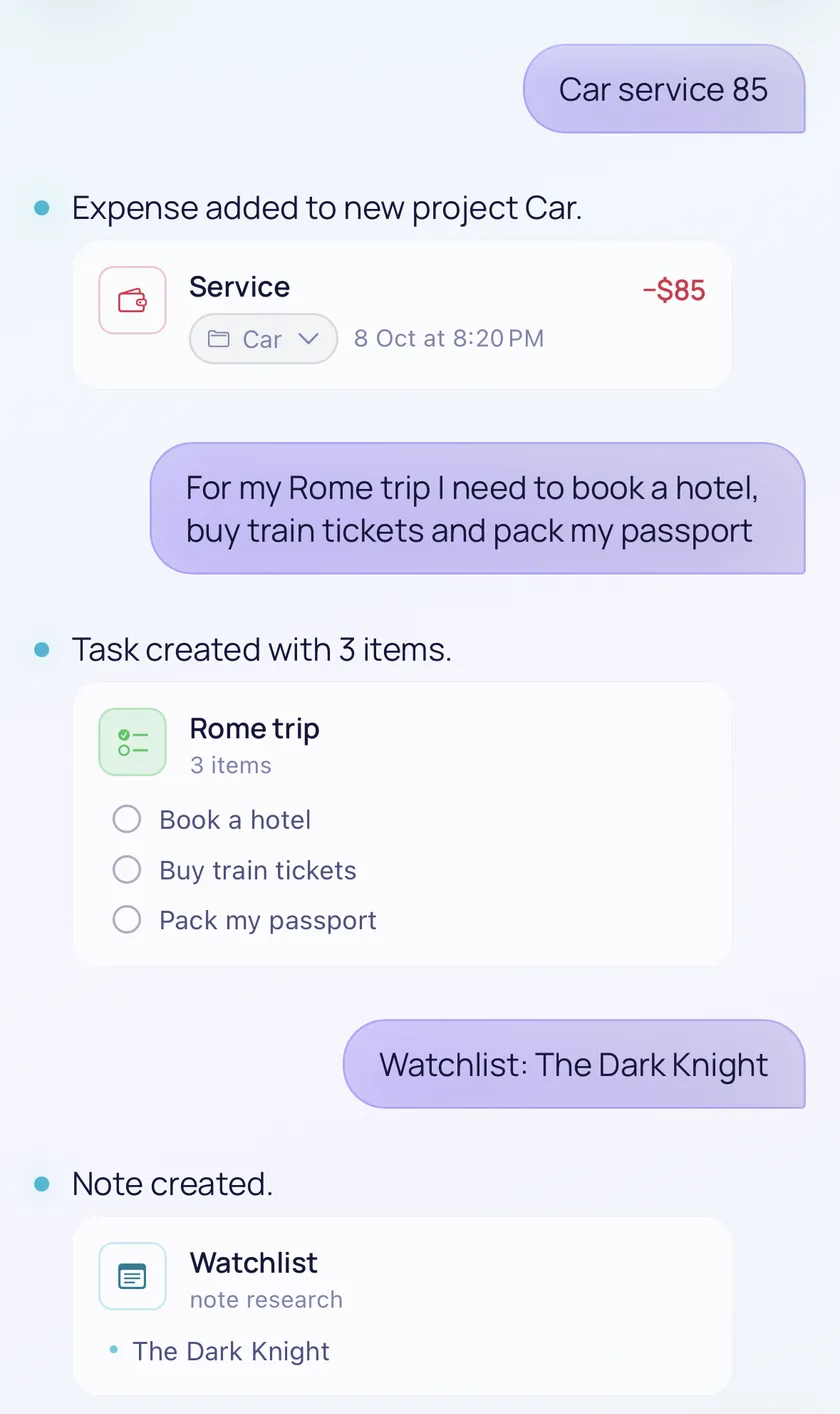
Work that needs doing becomes a task, and a deadline stays attached to it. A named goal with several actions becomes one task with a checklist, like the Rome trip at the top of this page.
Notes
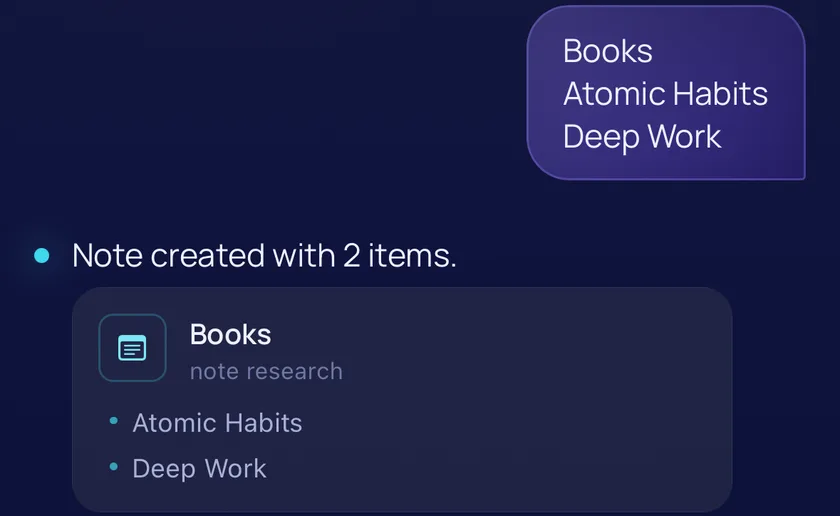
Ideas and lists are saved as notes. Send a heading with items on separate lines, and Livy saves them as a list. Send the same heading later with new items to add to it.
Expenses
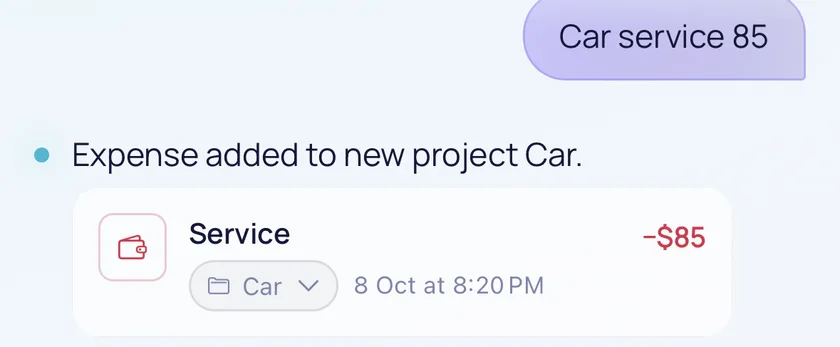
A short message with an amount becomes a money entry, grouped into a project such as Food, Car or a trip. We cover this in how to track daily expenses without spreadsheets. Livy does not connect to your bank, so you enter each expense yourself.
A Realistic Day With Livy
Here is what a day of capturing can look like. Every message is sent on its own, in the same chat, with no switching between apps. In the first chat, a grocery expense, a reminder to call Mom and a list of books all land in the right place. In the second, a car expense, a trip checklist and a watchlist note do the same.
On iPhone and iPad, the Livy app also lets you dictate messages by voice and sends reminder notifications once you allow them. The web app lets you create and review everything, but does not send phone push notifications.
Reviewing Everything in the Dashboard
Capturing is fast, and the dashboard is where you look things over. Signed-in users get pages for:
- Overview: tasks with their progress, upcoming reminders and notes at a glance.
- Reminders: upcoming reminders by date, with finished ones under Recently completed. Edit or reschedule, and mark things done.
- Tasks: checklists with a progress bar. Tick items off, add items, rename tasks or archive finished ones.
- Notes: read, edit and delete what you saved.
- Projects: money in and out for each project, with totals for the month or all time. Edit an entry or move it to another project.
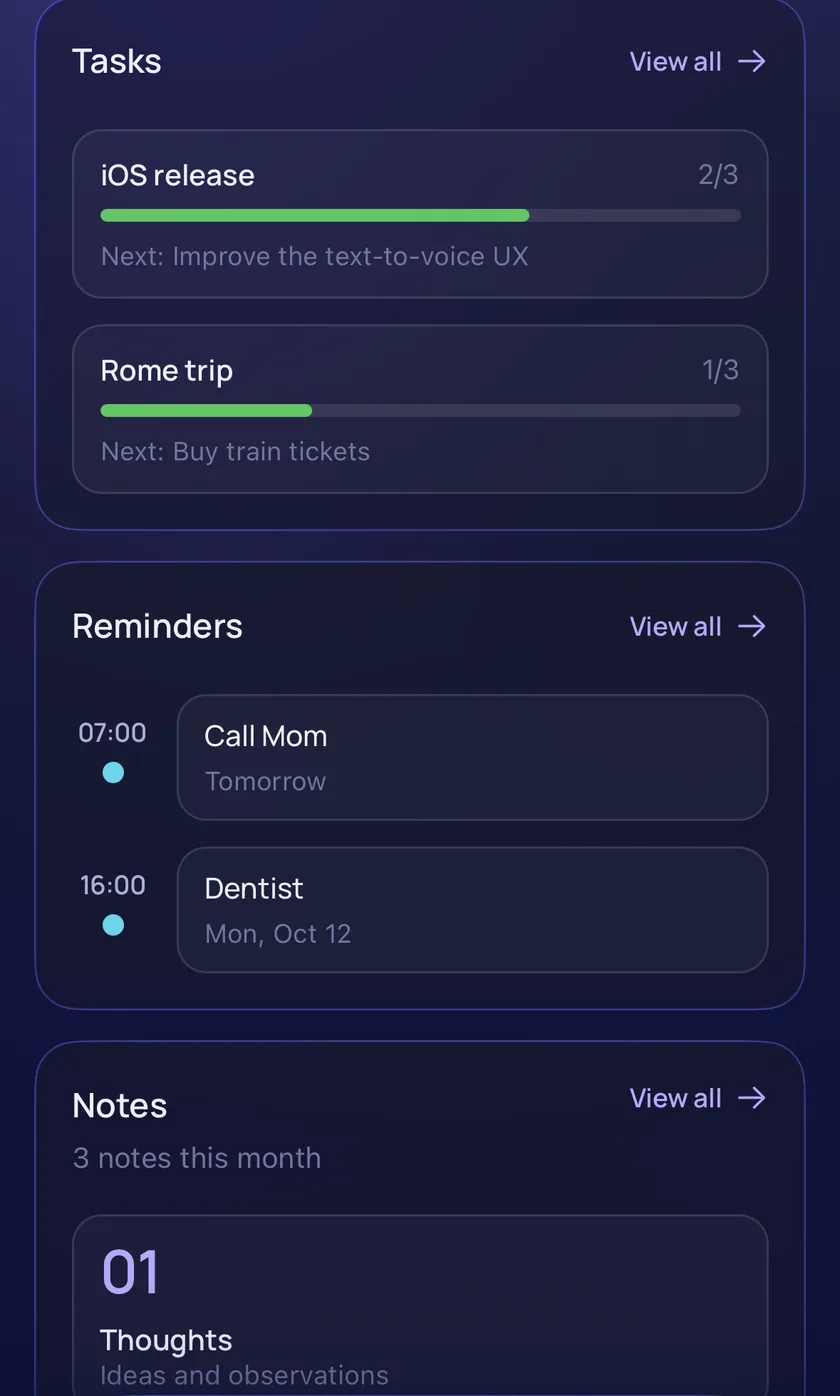
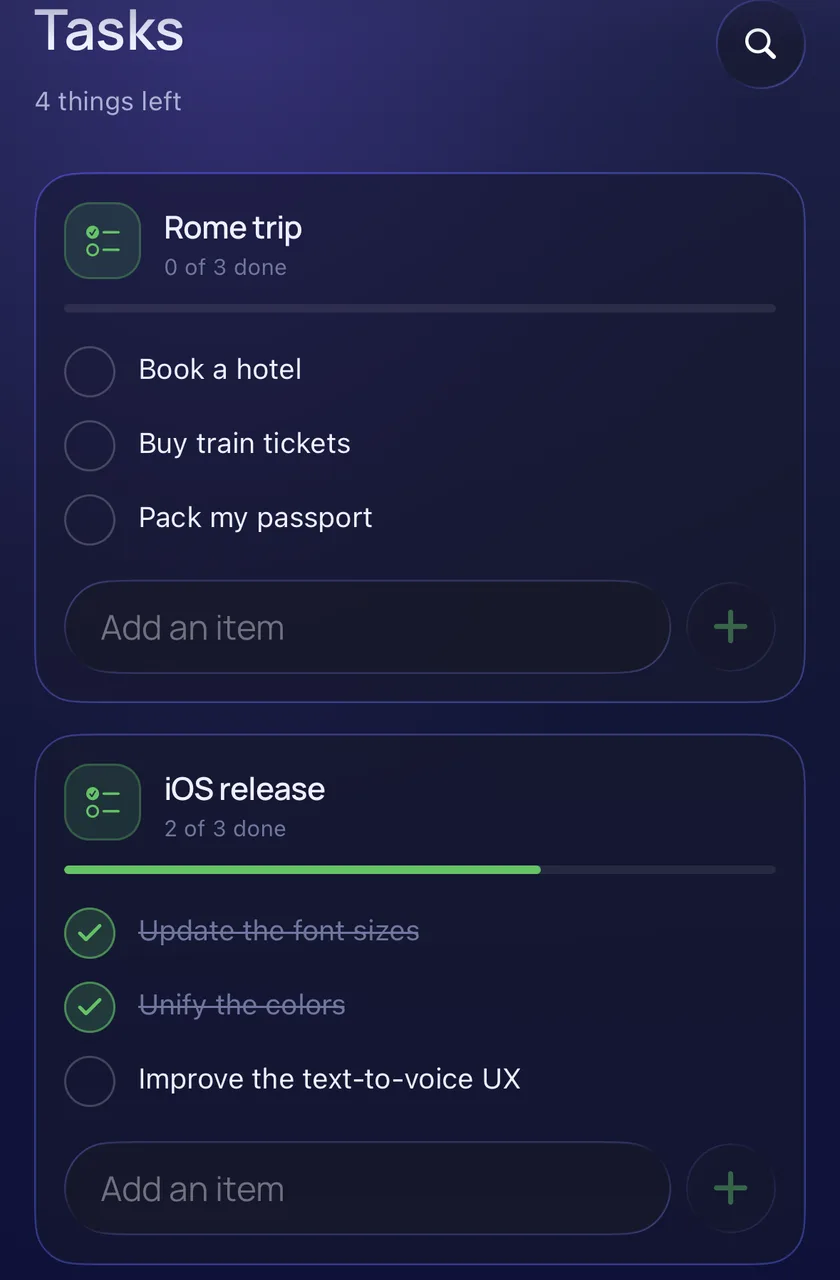
Chat is for adding things and for asking about your saved data, such as "How much did I spend this month?". Changes to older items are made in the dashboard. That split keeps capturing quick and gives you one place to review.
Frequently Asked Questions
Do I Have to Stop Using My Other Apps?
No. Keep whatever works for you. Many people use Livy for quick capture of everyday things and keep a calendar or a spreadsheet for specific purposes.
Can Livy Replace My Calendar?
No. Livy does not sync with calendar apps. It can save appointments and dates as reminders, but it is not a calendar.
How Does Livy Tell a Task From a Reminder?
If you ask to be reminded, or give a time for the action, it becomes a reminder. Other work to do becomes a task, and a deadline stays on the task.
Can I Try Livy Without Creating an Account?
Yes. You can open Livy and chat as a guest. Guest use is a limited trial, so you will be asked to sign up after a number of messages, and signing in unlocks the dashboard.
Is Livy Available on Phone and Computer?
Yes, on the web and on iPhone and iPad. There is no Android app yet, and Livy currently works in English.
Organize Less. Capture More.
You do not need fewer things to organize. You need less effort between a thought and a saved item. Capture first, keep reminders and tasks apart, review once a week, and let the sorting happen without you.
You can do that with a notebook, or with any tool you like. If you would rather type a sentence and let something else file it, Livy AI is one option worth trying.
Related articles
Personal Finance
How to Track Income and Expenses for Side Projects
Why money from side projects, rentals and content platforms gets confusing, how a simple ledger per project helps, and how content creators can keep track of income from multiple sources.
· 9 min read
Notes & Personal Organization
How to Organize Notes Without Complicated Folders
Why notes get messy, when folders help and when they get in the way, a simple capture-first approach, and how to keep growing lists such as watchlists and reading lists in one place.
· 8 min read
Task Management
How to Turn a Messy To-Do List Into an Actionable Checklist
Why to-do lists become overwhelming, the difference between a vague task and an actionable checklist, a step-by-step method for breaking work into clear actions, and how to create them from a single message.
· 8 min read