
Notes & Personal Organization
How to Organize Notes Without Complicated Folders
Why notes get messy, when folders help and when they get in the way, a simple capture-first approach, and how to keep growing lists such as watchlists and reading lists in one place.
By Livy AI · · 8 min read
You save an interesting idea in your phone, a few books you want to read in another note, and a useful recommendation somewhere else. A few weeks later you remember saving something important but cannot remember where. You search through folders, scroll through old notes and eventually give up.
Creating notes is usually easy. Finding them later is the real challenge.
A useful note-taking system should not need constant maintenance. It should make saving and finding information simple, and that is what this guide is about.
Why Do Our Notes Become So Messy?
We Capture Information in Different Places
A thought ends up in phone notes, a message to yourself, a browser bookmark, a document, a paper notebook or an email draft. Each place made sense in the moment. Together they mean you have to remember where to look. We touched on this in how to organize your life without multiple apps.
We Create Notes Without Thinking About How We'll Find Them
Titles like "Things", "Important" or "Ideas" say almost nothing. Months later, you open the note and have no idea what it was for. Context that was obvious when you wrote it is gone.
We Keep Creating New Lists Instead of Updating Existing Ones
Three shopping lists, two movie watchlists, a few gift idea notes and different reading lists. Each was started with good intentions, and now the same information lives in several places and none of them is complete.
Organizing Everything Can Become Too Much Work
Renaming, moving and categorizing notes takes time. A more complicated system is not necessarily a more useful one, especially when you spend more time organizing your notes than using them.
Why More Folders Don't Always Solve the Problem
Folders are a good tool in the right place. They work well for clear project boundaries, large document collections, shared work, professional reference material and information with an obvious permanent category.
For everyday personal notes, folders can add friction:
- A thought can belong to several topics.
- You forget which folder you chose.
- A new folder for every subject becomes inconvenient.
- Moving notes around is extra maintenance.
- Some information has no obvious category.
None of this makes folders bad. For everyday personal notes, a simple and searchable system may be more useful than an elaborate folder hierarchy.
A Simpler Approach: Capture First, Organize Later
Use One Convenient Place to Capture Notes
Pick one dependable place for quick information: a single notes app, a physical notebook, a simple inbox note or a personal organizer. Fewer capture locations mean fewer places to search later.
Write Notes That Make Sense Later
Add enough context to understand the note when you revisit it. "John 45" will puzzle you in a month. "John recommended the restaurant near the central park" will not.
Use Simple, Recognizable Titles
Name a list after its purpose: Watchlist, Books to Read, Gift Ideas for Mom, Weekend Trip Ideas, Recipes to Try. Skip elaborate naming conventions.
Keep Frequently Used Lists Together
Keep one ongoing list and add to it, instead of starting a new note every time. One complete watchlist beats five partial ones.
Make Finding Notes More Important Than Filing Them
Organization is only useful if you can get the information back when you need it. Choose a tool with straightforward search or an easy way to review what you saved.
Not All Notes Serve the Same Purpose
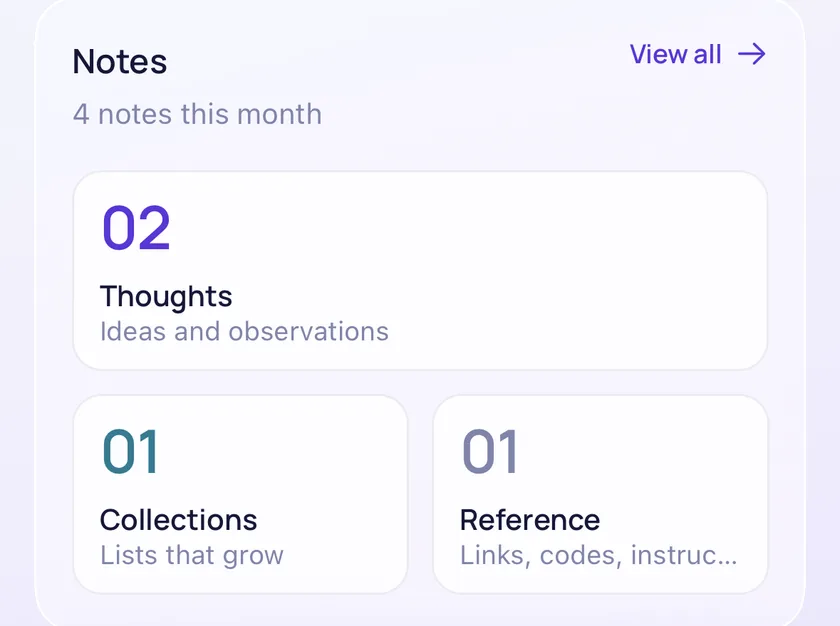
People save information for different reasons. Three simple groups can help you think about it. They are a way of thinking about your notes, not folders you have to choose between.
Thoughts and Ideas
"I liked the idea of creating a small garden on the balcony." These notes keep thoughts worth revisiting.
Information Worth Remembering
"The furniture store recommended a water-based finish for the wooden shelves." "The hotel checkout is at 11 AM." These keep useful reference information. Do not store passwords, payment card data or other sensitive secrets in an ordinary notes app.
Lists That Grow Over Time
Movies to watch, books to read, gift ideas, restaurants to try and travel ideas are collections you will update again and again. They deserve one home each.
What If Saving a Note Was as Easy as Sending a Message?
In a typical notes app you open the app, find a folder, create a note, type a title and choose where it goes. That is five steps before you have written the actual thought.
Livy AI takes a different approach. Instead of deciding where every thought belongs before saving it, you can simply write it in a chat. Livy recognizes when you are saving a note and keeps it available for later.
Livy also handles reminders, tasks and expenses, but this guide stays with notes.
How Livy AI Helps You Keep Notes Organized
Step 1. Save a Thought in Your Own Words
Write it as you would say it, in the web app or in the iPhone and iPad app, where you can dictate it by voice:
"One idea for the balcony is to grow herbs in small containers."
Livy can save an ordinary statement like this as a note.
Step 2. Create a Personal List
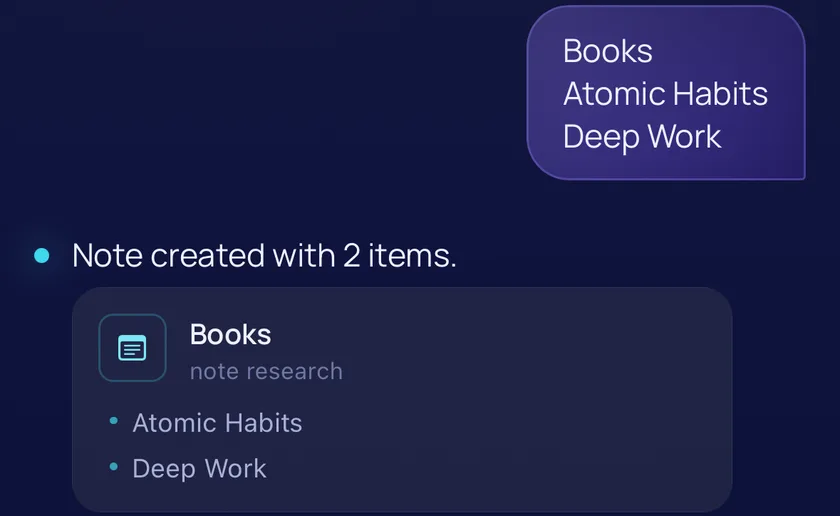
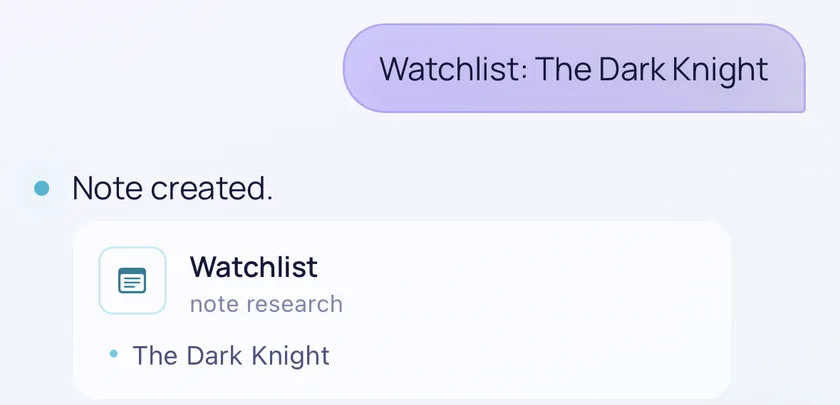
Write a heading and the items on separate lines, and Livy saves a named list. In the screenshot at the top of this page, "Books" with two lines below it became a note with two items. A single line such as "Watchlist: The Dark Knight" is saved as a note too:
Step 3. Add New Items Later
To grow a list, send another message with the same list title and the new item. Livy adds it to the existing list instead of creating a second one. You can also write "add Fight Club to my Watchlist". The same recognizable title is what tells Livy which list to update.
Step 4. Find Your Notes When You Need Them
Your saved notes and lists are in the Notes section of the dashboard. To look something up, ask in the chat, for example "Find notes about books". Livy searches the words in your saved notes. It is not a smart search of everything vaguely related, so the clear wording from earlier helps.
Step 5. Review and Edit Notes
In the dashboard you can edit or delete notes. Chat is for adding to a list, not for rewriting or deleting older notes.
How to Create and Update Lists Without Starting Over
A growing list is where a simple system pays off most. Each message below is sent separately, and the second one lands in the same list as the first. These are illustrations of that behavior, not screenshots.
A Movie Watchlist
First message
Watchlist The Dark Knight
Note created with 1 item.
Watchlist
- The Dark Knight
Later, a second message
Watchlist Fight Club
Note updated with 1 item.
Watchlist
- The Dark Knight
- Fight Clubnew
A Reading List
First message
Books to Read Atomic Habits
Note created with 1 item.
Books to Read
- Atomic Habits
Later, a second message
Books to Read Deep Work
Note updated with 1 item.
Books to Read
- Atomic Habits
- Deep Worknew
Gift Ideas
First message
Gift Ideas for Mom A cookbook
Note created with 1 item.
Gift Ideas for Mom
- A cookbook
Later, a second message
Gift Ideas for Mom A scarf
Note updated with 1 item.
Gift Ideas for Mom
- A cookbook
- A scarfnew
For this to work, put the list title on its own line, with each item on the line below it, and reuse exactly the same title. A one-line message such as "Watchlist: Fight Club" is saved as its own note rather than added to an existing list. Livy does not edit or remove single items from a list through chat. Do that in the dashboard.
When Should Something Be a Note Instead of a Task or Reminder?
A note preserves information. A task describes work to complete. A reminder helps you remember something at a specific time, or when you ask to be notified.
| Message | Type |
|---|---|
| Watchlist: Interstellar | Note |
| I liked the idea of adding plants to the balcony | Note |
| Buy plants for the balcony | Task |
| Remind me to buy plants tomorrow at 5 PM | Reminder |
| For the weekend trip, pack clothes and charge the camera | Task |
Livy recognizes these intentions and organizes supported messages accordingly. A note does not turn into a task or reminder by itself. For more on timed alerts, read how to stop forgetting everyday things. Likewise, a price you looked up is a note, while money you actually spent is an expense, which we cover in how to track daily expenses without spreadsheets.
How to Build a Note-Taking Habit That Lasts
Capture Ideas Immediately
Save a thought when it arrives. The version you write now is better than the one you try to remember later.
Don't Overthink Categories
An understandable note in an imperfect place beats a perfectly filed note you never wrote.
Use One List for Each Ongoing Collection
One watchlist, one reading list, one gift list. Add to them instead of duplicating them.
Review Notes When They Become Relevant
You do not need to reorganize your notes every day. Look at a list when you need it, and update it then.
Remove Information You No Longer Need
Deleting outdated notes now and then keeps a collection easier to use. Livy does not find or delete stale notes for you, so this one is yours.
Frequently Asked Questions
How Can I Organize Notes Without Folders?
Use one capture location, write notes with enough context, give lists recognizable titles, keep one list per collection and rely on search to find things later.
What's the Best Way to Organize Digital Notes?
It depends on what you save. Everyday notes often need no complicated folders, while large professional collections can benefit from more structure.
Can I Keep Notes and Lists in the Same App?
Yes. Livy supports both ordinary notes and growing lists.
Can I Add Items to an Existing List?
Yes. Send a message with the same list title and the new items, or write something like "add Fight Club to my Watchlist".
Can I Search My Notes in Livy AI?
Yes. Ask in the chat, for example "Find notes about books", and Livy looks through your saved notes for those words. You can also browse them in the dashboard.
Can I Save Notes Using My Voice?
On iPhone and iPad, yes: the iOS app supports voice dictation, which turns your speech into text. The web app does not currently offer native voice input.
Do I Need an Account to Try Livy?
No. You can open Livy and chat as a guest. Guest use is a limited trial, and signing in keeps your data in an account and unlocks the dashboard.
Keep Your Thoughts, Not the Clutter
Capture information when it comes to mind. Keep your notes understandable. Maintain existing lists rather than duplicating them, and make finding information easy. Skip organizational complexity you do not need.
You don't need a complicated system to remember an interesting thought, save a useful idea or maintain a list of things you want to try. Sometimes, you just need a place where you can write something down and find it later.
Related articles
Personal Finance
How to Track Income and Expenses for Side Projects
Why money from side projects, rentals and content platforms gets confusing, how a simple ledger per project helps, and how content creators can keep track of income from multiple sources.
· 9 min read
Task Management
How to Turn a Messy To-Do List Into an Actionable Checklist
Why to-do lists become overwhelming, the difference between a vague task and an actionable checklist, a step-by-step method for breaking work into clear actions, and how to create them from a single message.
· 8 min read
Personal Organization
How to Organize Your Life Without Using Multiple Apps
Why staying organized across several apps feels like extra work, what a simpler system looks like, and how a chat-first organizer files reminders, tasks, notes and expenses from one place.
· 8 min read