
Reminders
How to Stop Forgetting Things Without a Complicated System
A practical guide to remembering appointments, calls and bills: why small things slip, a simple system that works, and how natural-language reminders take the effort out of it.
By Livy AI · · 7 min read
You remember the dentist appointment at 4:30, which is awkward, because it was at 4:00. You promised to call someone back and the day ended without it. You open your banking app and a bill was due yesterday. Or you think of something important while doing something else, tell yourself you will handle it in a minute, and it is gone by the time your hands are free.
None of this means you are careless. Everyday life is full of small responsibilities, and they are easy to lose when memory is the only place you keep them.
You do not need to remember everything yourself. You need a simple way to capture things the moment you think of them, and a way to be reminded when they matter.
Why Do We Forget Small Everyday Things?
Small things slip for ordinary, practical reasons:
- Too many things compete for attention. Small items lose out to bigger ones.
- "I will remember that later." It feels true at the time. An hour later, something else has taken its place.
- Interruptions. You were about to write it down when someone asked you a question.
- Information in different places. A date in a text, a to-do on a sticky note, an appointment in an email.
- Saving it feels like a chore. If it takes more than a few seconds, it is easy to postpone, and later never comes.
These are habits and setup problems, not character flaws, and both can be changed.
A Simple System to Remember What Matters
Four small rules cover most of it. They work with a paper notebook, a notes app or any reminder app.
Capture Things as Soon as You Think of Them
The best moment to save something is the moment you think of it, because that is when you know exactly what you meant. When you think "I should book the car service", put it somewhere right away, even roughly. You can tidy it up later, but you cannot tidy up something you forgot.
Be Specific About What and When
"Call John sometime" gives you nothing to act on, and sometime never arrives. "Remind me to call John tomorrow at 5 PM" says who, what and when. Even a rough time such as "tomorrow evening" turns a worry into a plan.
Use Reminders for Things That Need Your Attention at a Specific Time
Not everything needs an alert. A wish list is fine as a list. A reminder earns its place when something must happen at a particular moment: a meeting at 10, a bill due on the first, a call you promised for tonight. Keep notifications for those, so you notice them instead of swiping them away.
Keep Your System Easy Enough to Use Every Day
A system only helps if you use it. The more effort it takes to save something, the more you will skip it, usually on the busy days when you need it most. If you are avoiding your own system, the fix is rarely more discipline. It is making the first step smaller.
Why Creating Reminders Sometimes Feels Like Extra Work
In a traditional reminder app, saving one reminder can mean opening the app, finding the right screen, typing a title, choosing a date and time, setting repetition if needed, and saving. Not every app asks for all of that, and each step is reasonable on its own.
Together, though, it can feel heavy for something you can already say in one sentence: "Call John tomorrow at 5." That small friction often decides whether a reminder gets saved or postponed.
A Simpler Approach: Reminders Using Natural Language
A natural-language reminder is one you write the way you would say it to another person, in an ordinary sentence, without filling out separate fields. The software works out the action and the timing from the words. For example:
- "Remind me to call John tomorrow at 5 PM."
- "Dentist appointment on Friday at 4 PM."
- "Remind me to pay rent on the first of every month."
- "Anna's birthday is August 22."
A system that understands language can tell that the first is a call tomorrow evening, the second a one-time appointment, the third a monthly repeat and the fourth a yearly date. You described what you wanted, and the structure was filled in for you.
This is the idea behind Livy AI, a personal organizer where creating a reminder can be as simple as sending a message.
How to Create Reminders With Livy AI
Step 1. Write What You Need to Remember
Type your message into Livy's chat, with no category or screen to choose:
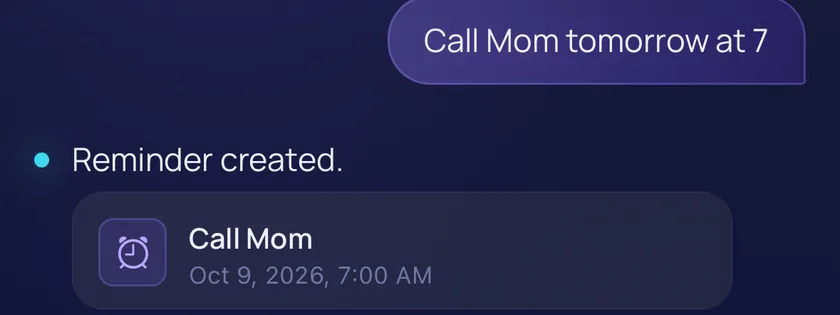
"Call Mom tomorrow at 7."
Step 2. Livy Organizes the Reminder
Livy saves it as a reminder and replies "Reminder created." with the title and the date and time it understood, as in the screenshot at the top of this page. That makes it easy to see right away whether it got it right. Here, "tomorrow at 7" became 7:00 AM, so write "7 PM" if you mean the evening.
Step 3. Review Your Upcoming Reminders
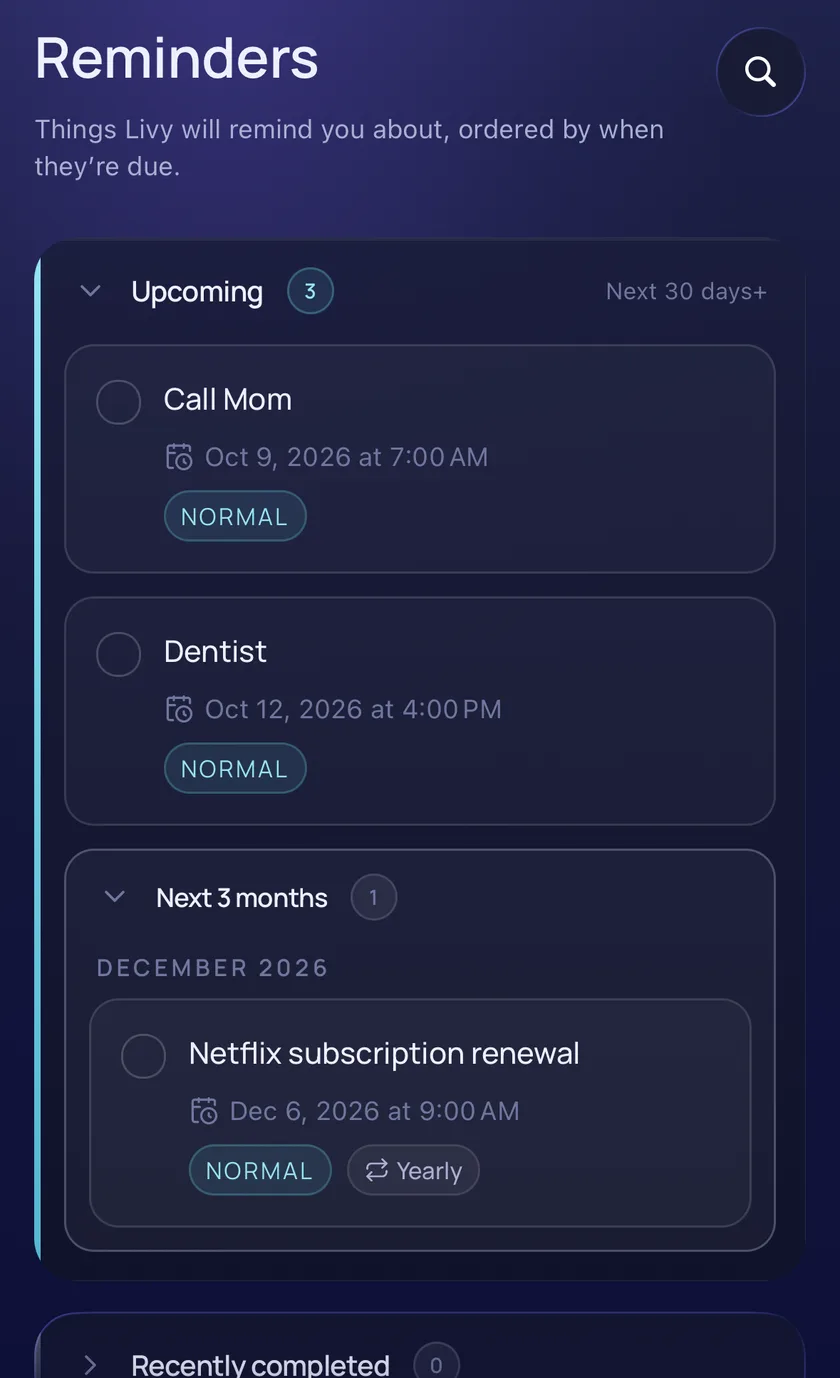
Your reminders are collected in the dashboard. Upcoming reminders are listed by date, and finished ones move to Recently completed. If a plan changes, you can edit the title, move the time or mark the reminder as done.
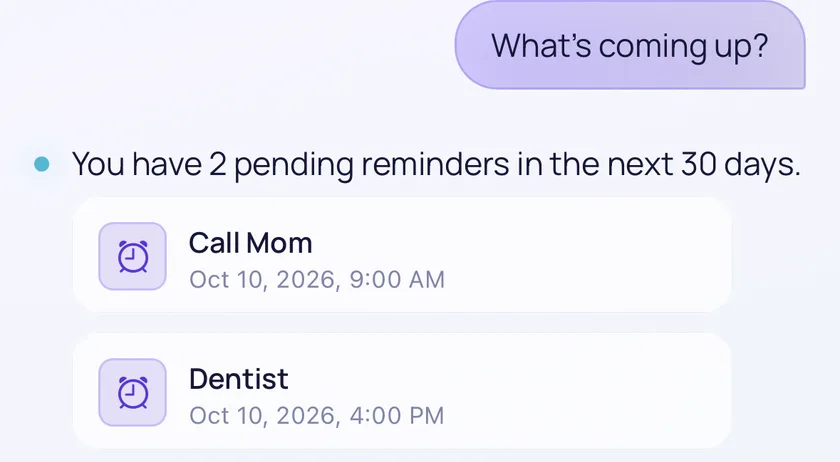
You can also ask in the chat. Write "What's coming up?" and Livy lists your pending reminders for the next 30 days.
Step 4. Get Notified When It's Time
Notifications come through the Livy iPhone and iPad app, once you allow them on your device. Livy does not send browser push notifications: on the web you can create and review reminders, and the phone alert comes from the iOS app.
Everyday Reminder Examples You Can Try
Not sure what to type? Start with one of these and change the names and times.
Appointments and Meetings
Dentist appointment on Friday at 4 PM
Dentist appointment
Friday, 4:00 PM
Reminder
Remind me about my meeting tomorrow at 10 AM
Meeting
Tomorrow, 10:00 AM
Reminder
Personal Responsibilities
Remind me to call Dad tonight at 7
Call Dad
Tonight, 7:00 PM
Reminder
Remind me to pick up the package tomorrow afternoon
Pick up the package
Tomorrow, afternoon
Reminder
Recurring Reminders
Remind me to pay rent on the first of every month
Pay rent
The 1st of every month
Repeats monthly
Remind me to take out the trash every Tuesday at 8 PM
Take out the trash
Every Tuesday, 8:00 PM
Repeats weekly
Livy supports one-time and repeating reminders. When you mark a repeating one as done, it does not disappear: it moves on to its next date.
Birthdays and Important Dates
Anna's birthday is August 22
Anna's birthday
August 22, every year
Repeats yearly
Birthdays and anniversaries are treated as yearly events, so you enter them once. These cards are illustrations: the exact date and time Livy shows depends on what you type, and you can correct it afterwards.
What's the Difference Between a Task and a Reminder?
A task describes work to complete. A reminder is tied to being notified at a certain time, or to you asking to be reminded. Livy organizes both from ordinary language, so you do not have to decide in advance:
| Message | Organized as |
|---|---|
| Call John | Task |
| Remind me to call John tomorrow at 5 PM | Reminder |
| Finish the presentation by Friday | Task with deadline |
| Remind me about the presentation on Friday at 9 AM | Reminder |
If you want a notification at a specific time, say "remind me" or give a clear time for the action.
Managing Reminders on Your Phone and Computer
It also helps to glance at what is coming up, and to fix a plan that changed. In Livy you can:
- View upcoming reminders and reminders you have completed.
- Edit a reminder, move it to a new time or mark it as done.
- Use voice dictation on iPhone or iPad to enter your message.
- Receive reminder notifications on supported iOS devices, when allowed.
The web app lets you create, review and edit reminders, but it does not currently offer the same native voice input or phone notifications as the iOS app. Livy works on the web and on iPhone and iPad. There is no Android app yet, and Livy currently works in English.
Frequently Asked Questions
Can I Create a Reminder Just by Typing a Sentence?
Yes. Write "Remind me to call John tomorrow at 5 PM" in the chat and Livy saves it as a reminder with that date and time. Messages should be in English.
Can I Set Recurring Reminders?
Yes. Livy supports reminders that repeat daily, weekly, monthly or yearly. Phrases like "every Tuesday" or "every month", and dates like birthdays, tell it that a reminder repeats.
Can I Create Reminders Using My Voice?
On iPhone and iPad, yes: the iOS app supports voice dictation. The web app does not currently offer the same native voice input.
Can I Try Livy AI Without Creating an Account?
Yes. You can open Livy and chat as a guest. Guest use is a limited trial, so after a number of messages you will be asked to sign up, and signing in unlocks the dashboard.
Do I Need the iPhone App to Receive Reminder Notifications?
Yes. Phone notifications come from the iPhone and iPad app, once you allow them. The web app does not send push notifications, so on the web you see your reminders when you open Livy.
Make Remembering Things the Easy Part
Forgetting small things is rarely about effort. It is usually about how much friction sits between a thought and a saved reminder. Capture things when you think of them, be specific about what and when, keep notifications for time-sensitive things, and make the process light enough to use every day.
You can do that with a notebook or any app you like. If you would rather write a sentence and let something else do the organizing, Livy AI is one option worth trying.
Related articles
Personal Finance
How to Track Income and Expenses for Side Projects
Why money from side projects, rentals and content platforms gets confusing, how a simple ledger per project helps, and how content creators can keep track of income from multiple sources.
· 9 min read
Notes & Personal Organization
How to Organize Notes Without Complicated Folders
Why notes get messy, when folders help and when they get in the way, a simple capture-first approach, and how to keep growing lists such as watchlists and reading lists in one place.
· 8 min read
Task Management
How to Turn a Messy To-Do List Into an Actionable Checklist
Why to-do lists become overwhelming, the difference between a vague task and an actionable checklist, a step-by-step method for breaking work into clear actions, and how to create them from a single message.
· 8 min read