
Task Management
How to Turn a Messy To-Do List Into an Actionable Checklist
Why to-do lists become overwhelming, the difference between a vague task and an actionable checklist, a step-by-step method for breaking work into clear actions, and how to create them from a single message.
By Livy AI · · 8 min read
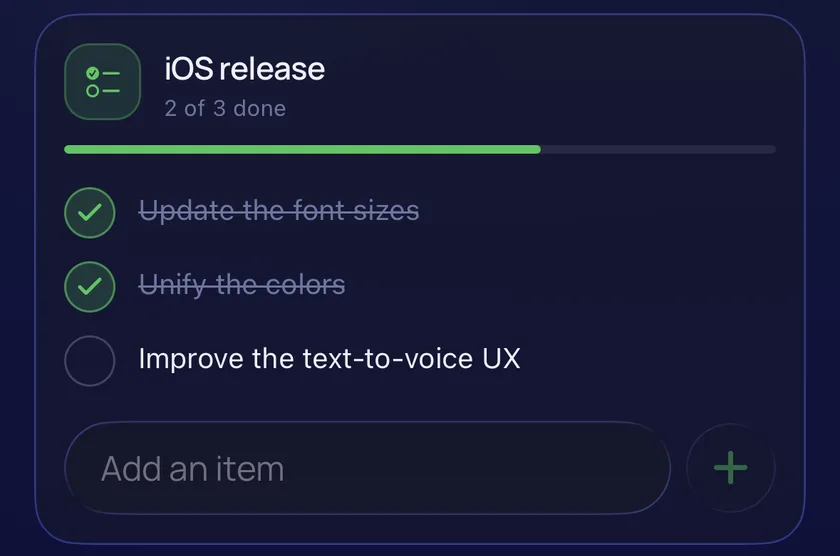
You open your to-do list and see this:
- Finish website.
- Prepare presentation.
- Fix things around the house.
- Plan weekend trip.
- Organize documents.
Everything looks important, but none of it tells you where to begin. You know what has to be accomplished, yet the list does not make taking action any easier.
Often the problem is not that you have too many tasks. It is that the tasks are too broad or unclear. A useful to-do list should make the next action obvious.
Why Do To-Do Lists Become Overwhelming?
Tasks Are Too Vague
"Work on the website." "Organize the apartment." "Prepare for vacation." "Fix the car." These phrases describe goals, not concrete next steps. Every time you read one, you have to work out what it actually means.
Large Projects and Small Actions Get Mixed Together
"Renovate the kitchen" is a large goal. "Call the electrician" is one action. When both sit on the same list, the big item never feels doable and the small one hides among it.
Everything Looks Equally Important
A long list with no order makes it hard to choose. Picking just a few immediate priorities for the day is often enough to get moving.
Lists Keep Growing Without Being Reviewed
Unfinished tasks pile up, and some stop being relevant long before you remove them. A regular look at what is left keeps the list honest.
The Difference Between a To-Do List and an Actionable Checklist
A to-do list can hold broad responsibilities. An actionable checklist breaks one of them into specific steps:
Before: a vague task
“Prepare for the weekend trip.”
One line, and no clear place to start.
After: an actionable checklist
Prepare for the Weekend Trip
- Pack clothes.
- Charge the camera.
- Check travel documents.
- Confirm transportation.
The second version is easier to act on because the steps are visible. Not everything needs this treatment, though. "Call the dentist" is already specific enough. The goal is not longer lists, it is clearer ones.
How to Turn a Messy To-Do List Into Clear Actions
Step 1. Write Down Everything You Need to Do
Get it all into one place first. Do not sort or prioritize yet. The point is to get things out of your head.
Step 2. Identify the Main Goal
Look for items that describe a larger objective rather than one action. "Prepare Mom's birthday" is a goal. It becomes the title of your checklist.
Step 3. Break the Goal Into Smaller Actions
Turn the goal into concrete actions. For Mom's birthday that could be: order a cake, buy flowers, choose a gift, wrap the gift. Start each action with a verb such as call, buy, review, prepare, send, fix or update. A verb makes the action something you can simply do.
Step 4. Decide What Needs to Happen First
Find the first useful action. The cake may need to be ordered days before the party, while wrapping the gift can wait. Putting the time-sensitive step first tells you where to start.
Step 5. Add a Deadline When It Matters
A deadline helps with time-sensitive work, for example "Finish the documentation by Friday." A deadline is not the same as a reminder. It marks when the work should be done, while a reminder is a notification you ask for at a particular time.
Step 6. Review and Complete Actions
Tick off actions as you finish them so you can see progress, and take a short look at the list every so often to remove anything that no longer matters. Try it on this checklist:
Mom's Birthday
0 of 4 done
Why Organizing Tasks Can Feel Like Another Task
Task management can add work of its own. Depending on the tool, you might open an app, create a task, decide which project or list it belongs to, add each checklist item one by one, choose dates and keep it all up to date afterwards. Not every app asks for all of that, but each step takes a little time. We looked at the same problem across tools in how to organize your life without multiple apps.
Often you already know exactly what has to happen. You just want to write it down without configuring anything.
What If You Could Describe a Task and Get an Organized Checklist?
That is the idea of natural-language task creation. Instead of creating each checklist item by hand, you describe the goal and its actions in one ordinary message:
"For the next iOS release, fix notifications, update the fonts and review the colors."
A natural-language organizer can identify the main task, here the next iOS release, and the actions that belong to it.
That's the idea behind Livy AI. Instead of creating a task and manually entering every checklist item, you can describe what needs to be done in a message. Livy organizes the actions into a task you can review and complete.
It works best for small personal projects and everyday responsibilities. You still describe the actions yourself: Livy organizes the steps you write, and it does not invent a project plan from a vague goal like "Build a website".
How Livy AI Turns Everyday Messages Into Tasks
Step 1. Describe What You Need to Accomplish
Type a message into the chat, in the web app or in the iPhone and iPad app, where you can also dictate it by voice. Name the goal, then list the actions:

Step 2. Livy Organizes Related Actions
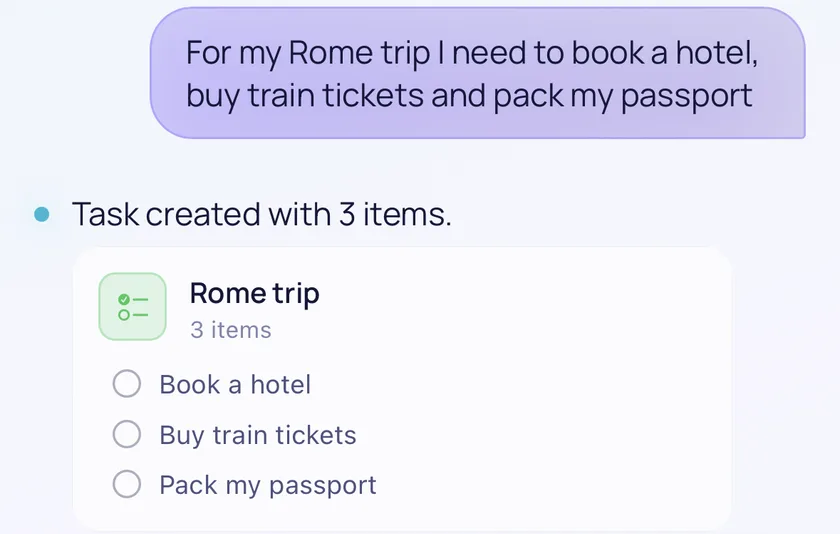
Livy identifies the main task and the actions in the message, and replies with a confirmation such as "Task created with 3 items." The message above becomes a task called iOS release with these actions:
- Update the font sizes.
- Unify the colors.
- Improve the text-to-voice UX.
Step 3. Review the Task in Your Dashboard
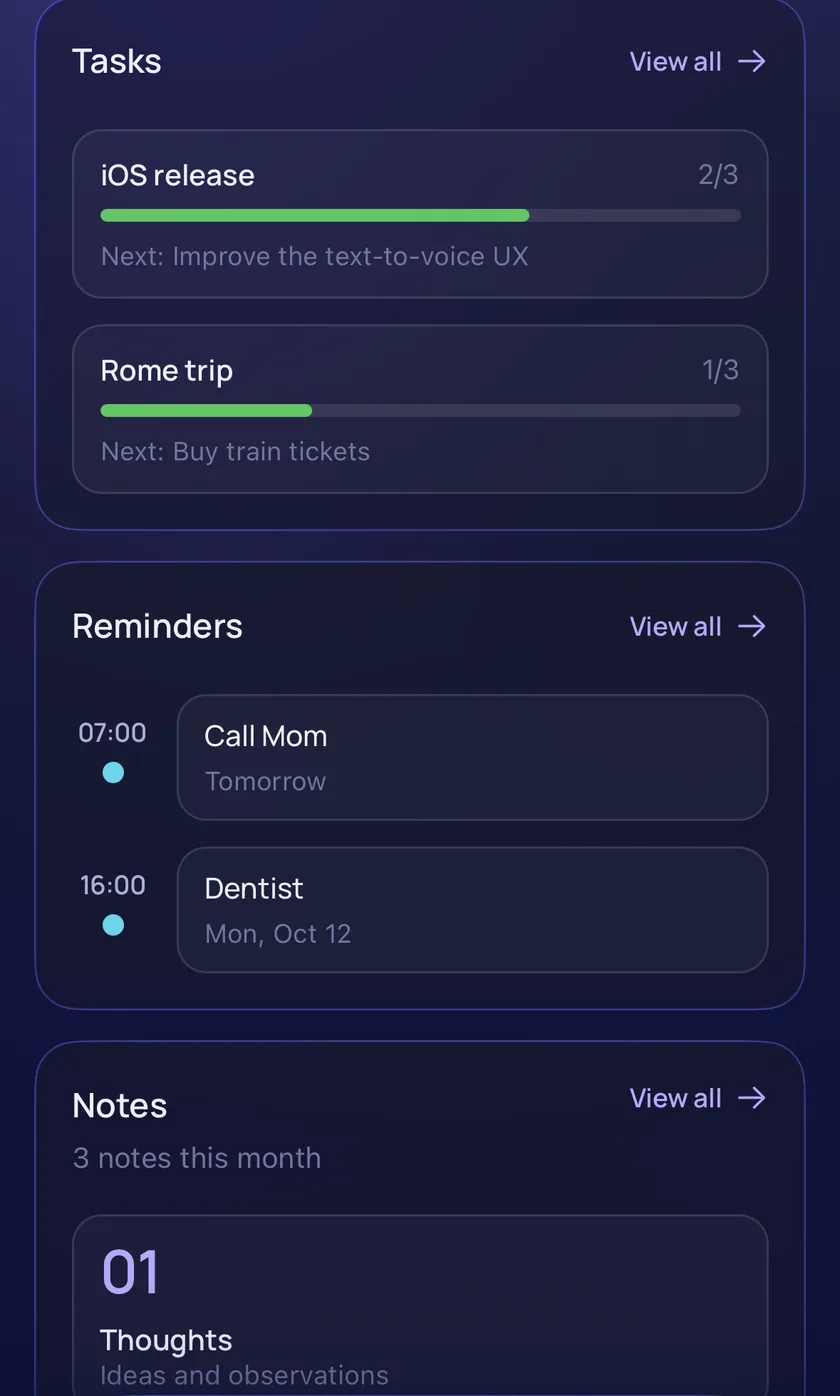
Saved tasks appear in the Tasks section of the dashboard, with the title and each checklist item. Signing in unlocks the dashboard.
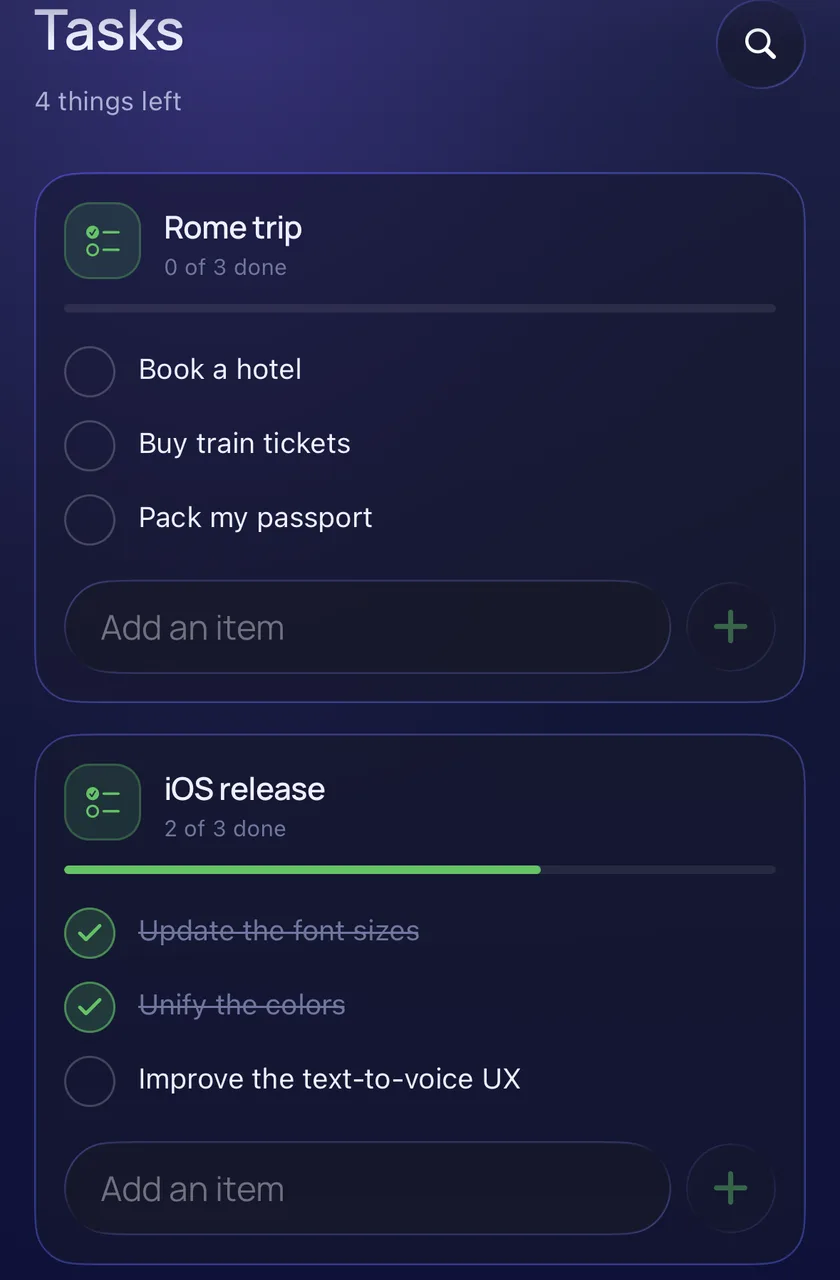
Step 4. Mark Actions Complete
Tick off actions in the dashboard as you finish them, and the task shows its progress, such as 2 of 3 done. Checking items off is done in the dashboard, not by sending a chat message.
Step 5. Update or Manage the Task
In the dashboard you can edit or delete an item, rename a task, archive or restore it, and delete it. To add an action later from chat, name the same task, for example "add review analytics to the iOS release task". Livy does not assign priorities, set dependencies or plan around your calendar. It keeps the checklist you wrote.
Real-Life Examples of Actionable Checklists
Here are four everyday examples of what to type and the task you can expect. Titles and wording come from your message, so the results can vary a little. Separating actions with commas gives the clearest result.
Preparing for a Weekend Trip
For the weekend trip, pack clothes, charge the camera and check the tickets.
Weekend trip3 items
- Pack clothes
- Charge the camera
- Check the tickets
Getting Ready for a Birthday
For Mom's birthday, order a cake, buy flowers, and wrap the gift.
Mom's birthday3 items
- Order a cake
- Buy flowers
- Wrap the gift
Preparing a Product Release
For the next app release, fix notifications, test onboarding and update screenshots.
Next app release3 items
- Fix notifications
- Test onboarding
- Update screenshots
Taking Care of Home Repairs
For the apartment, replace the kitchen light, fix the drawer and check the bathroom faucet.
Apartment3 items
- Replace the kitchen light
- Fix the drawer
- Check the bathroom faucet
These cards are illustrations of the task structure, not screenshots, and not every message will be understood perfectly. A task is a checklist for one goal. Tasks are separate from the projects Livy uses for money.
Tasks vs. Reminders: When Do You Need a Notification?
A task describes work to complete. A reminder is something you explicitly want to remember at a particular time, or be notified about. Here is how a few messages are organized:
| Message | Organized as |
|---|---|
| Call the electrician | Task |
| Remind me to call the electrician tomorrow at 5 PM | Reminder |
| Finish the documentation by Friday | Task with deadline |
| For the Friday meeting, prepare the slides | Task |
| Remind me about the meeting Friday at 9 AM | Reminder |
A date inside a task can be a deadline or just context ("For the Friday meeting...") rather than a request for a separate reminder. The iPhone and iPad app can notify you shortly before a task deadline when notifications are enabled. The web app does not send phone notifications. For more on reminders, see how to stop forgetting everyday things.
How to Keep Your To-Do List Manageable
Keep Your Next Actions Clear
Avoid items you have to reinterpret every time you look at them. If you need to think about what it means, rewrite it.
Break Down Larger Tasks Only When Necessary
A one-step task does not need a checklist. Add steps when the work really has several.
Focus on a Few Immediate Priorities
Each day, pick the few things that matter most. This is your own judgment, and Livy does not prioritize for you.
Review Unfinished Tasks Regularly
A short weekly look is enough to decide what is still relevant and drop the rest.
Avoid Overcomplicating Your System
Categories, views and labels are useful only when they solve a real problem. Aim for a system that supports action instead of needing constant upkeep.
Frequently Asked Questions
How Do I Organize a Messy To-Do List?
Write everything down, find the main goals, break the larger ones into specific actions, and review what is left regularly.
What's the Difference Between a Task and a Checklist?
A task describes something to accomplish. A checklist holds the individual actions needed to complete it.
How Do I Break a Big Task Into Smaller Steps?
Ask what the finished result looks like, then list the concrete actions that get you there, each starting with a verb.
Can AI Help Organize My To-Do List?
An AI personal organizer can read a natural-language description and structure it. Livy does this for the task and actions you describe. It does not create a whole project plan on its own.
Can Livy Create Multiple Checklist Items From One Message?
Yes, when the message describes one goal and its related actions. It is a different case from one message that mixes unrelated tasks, reminders and expenses, so send those separately.
Can I Set Deadlines for Tasks in Livy?
Yes. A message like "Finish the documentation by Friday" saves a task with a deadline. A deadline without a time of day means the end of that day. A reminder is created when you ask to be reminded.
Can I Mark Tasks Complete?
Yes, in the dashboard. You can tick individual actions, and the task shows its progress.
Can I Try Livy Without Creating an Account?
Yes. You can open Livy and chat as a guest. Guest use is a limited trial, so you will be asked to sign up after a number of messages, and signing in keeps your data and unlocks the dashboard.
Less Organizing, More Getting Things Done
A list of vague responsibilities is hard to act on. Clear actions are easier to understand, large goals can be broken into manageable steps, and reviewing progress keeps a list useful. Task management should not become another responsibility.
You don't need a complicated task-management system to make progress. Sometimes, you just need to describe what has to be done and turn it into a clear list of actions. With Livy AI, that can start with a single message.
Related articles
Personal Finance
How to Track Income and Expenses for Side Projects
Why money from side projects, rentals and content platforms gets confusing, how a simple ledger per project helps, and how content creators can keep track of income from multiple sources.
· 9 min read
Notes & Personal Organization
How to Organize Notes Without Complicated Folders
Why notes get messy, when folders help and when they get in the way, a simple capture-first approach, and how to keep growing lists such as watchlists and reading lists in one place.
· 8 min read
Personal Organization
How to Organize Your Life Without Using Multiple Apps
Why staying organized across several apps feels like extra work, what a simpler system looks like, and how a chat-first organizer files reminders, tasks, notes and expenses from one place.
· 8 min read